 SessionRescue
Your terminals, back after the crash.
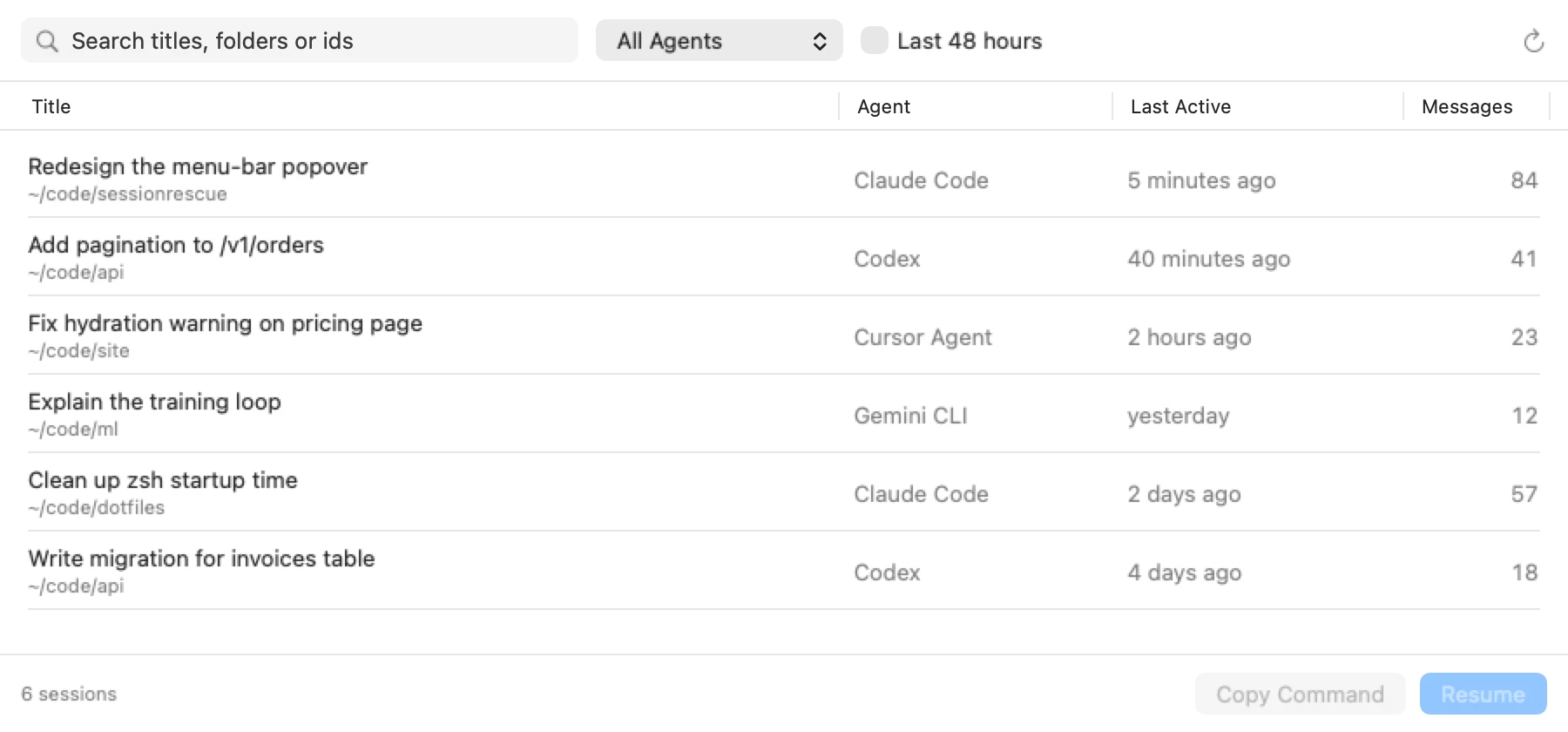
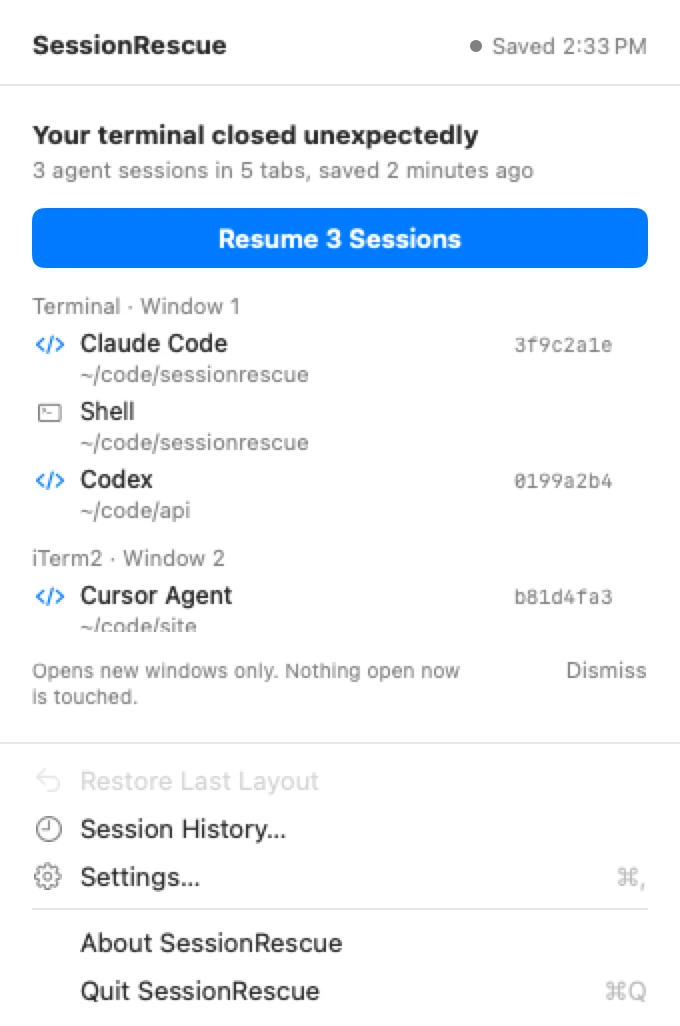
SessionRescue keeps a quiet record of your Terminal and iTerm2 windows, tabs, folders and running coding agents. When the Mac reboots or the terminal quits, one click on Resume opens everything again and each agent picks up its own session.
One-time payment, direct download.
Resumes
- Claude Code
- Codex
- Cursor Agent
- Gemini CLI
- Aider
- opencode
01How it works
It keeps a record every 12 seconds.
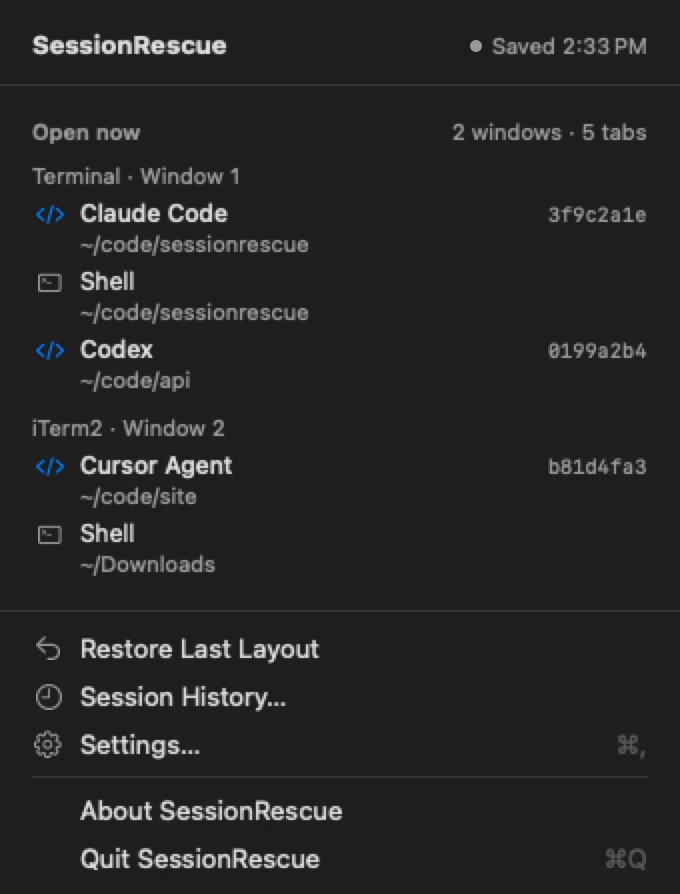
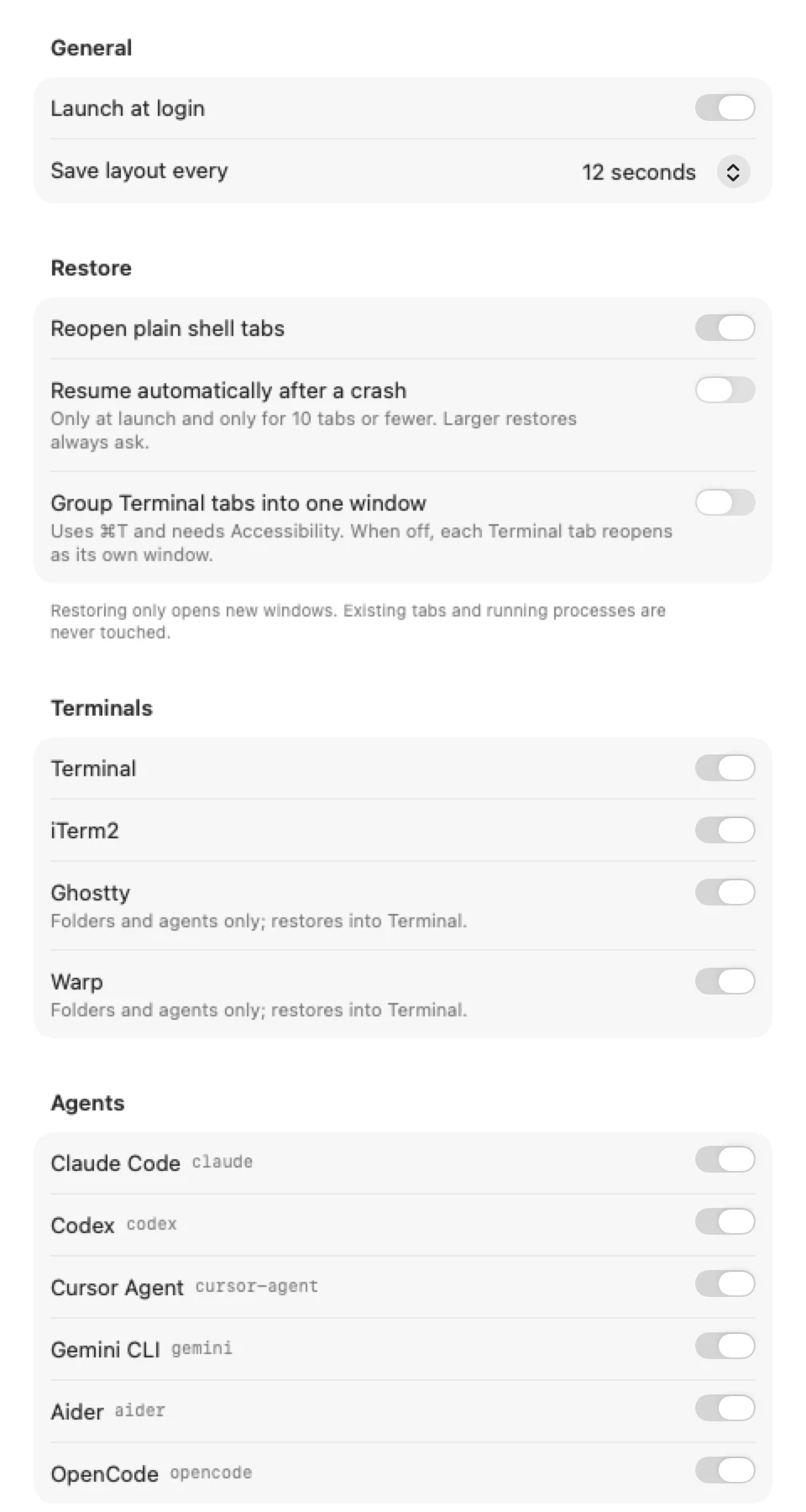
From the menu bar, SessionRescue notes each window, each tab, its working folder, and any coding agent running in it together with that agent's session id. The interval can be set from 8 to 60 seconds.
- 1
Records
A snapshot of every window, tab, folder and agent session id. Only the five most recent are kept.
- 2
Notices
A crash or reboot, or a terminal that quit while agents were running.
- 3
Resumes
One click on Resume reopens the windows and tabs in their folders, and every agent continues where it was.
Agents it recognises
| Agent | Resumed with |
|---|---|
| Claude Code | its session id |
| Codex | its session id |
| Cursor Agent | its session id |
| Gemini CLI | its session id |
| Aider | its restored chat history |
| opencode | its session id |
If an id can't be found or doesn't look valid, SessionRescue falls back to the agent's own "continue latest" command.
02Restore
One click puts the layout back.
After a crash, a reboot, or quitting the terminal with agents still running, SessionRescue offers to resume. Windows and tabs reopen in the right folders and every agent continues where it was. Older sessions stay in Session History, so you can reopen yesterday's work too.
- Detects
- A crash or reboot, or a terminal that quit while agents were running
- Asks
- Once per crash, with a notification and the menu-bar popover
- Large restores
- More than 10 tabs always ask before opening
- Auto-resume
- Optional and off by default. At launch only, at most once every 10 minutes, 10 tabs or fewer
03Safety
It only ever opens new windows.
Restoring is additive. Whatever you have open right now stays exactly as it is.
- Never types into a tab you already have open
- Never kills a process, and never changes your shell or terminal settings
- Never writes to agent folders; it only reads them to find session ids
- Writes only to its own folder in Application Support, with atomic, size-capped files
- Quotes and escapes every path and id before it goes near a shell
- A missing permission shows a small status, never a stream of alerts
04Privacy
Nothing leaves your Mac.
SessionRescue is fully local. It makes no network requests: no analytics, no crash reporting, no account and no update check.
- Sends
- Nothing
- Reads
- Your terminal window and tab layout through Apple Events, the running processes in those tabs, with their command lines and working folders, and the session files in ~/.claude, ~/.codex, ~/.cursor and ~/.gemini, read-only
- Stores
- Up to five recent snapshots of that layout in ~/Library/Application Support/SessionRescue, readable only by you
- Does not read
- What is printed in your terminals, your shell history, or your keystrokes
- This website
- No analytics or tracking cookies. Payment is handled by Stripe.
05Pricing
Buy once.

SessionRescue
Version 2.1.1, preview
$7one-time
- Menu-bar app for macOS 13 and later, Apple Silicon and Intel
- Terminal.app and iTerm2
- Resumes Claude Code, Codex, Cursor Agent, Gemini CLI, Aider and opencode
- Fully local, no account
- Full refund within 14 days, no questions asked
Payments run in Stripe test mode while SessionRescue is in preview. You get the download straight after paying. Full refund within 14 days, no questions asked.
Installing
- Unzip the download and drag SessionRescue into Applications.
- It is not signed with an Apple Developer ID yet, so macOS warns the first time. Right-click the app, choose Open, then Open again. See the FAQ for macOS 15.
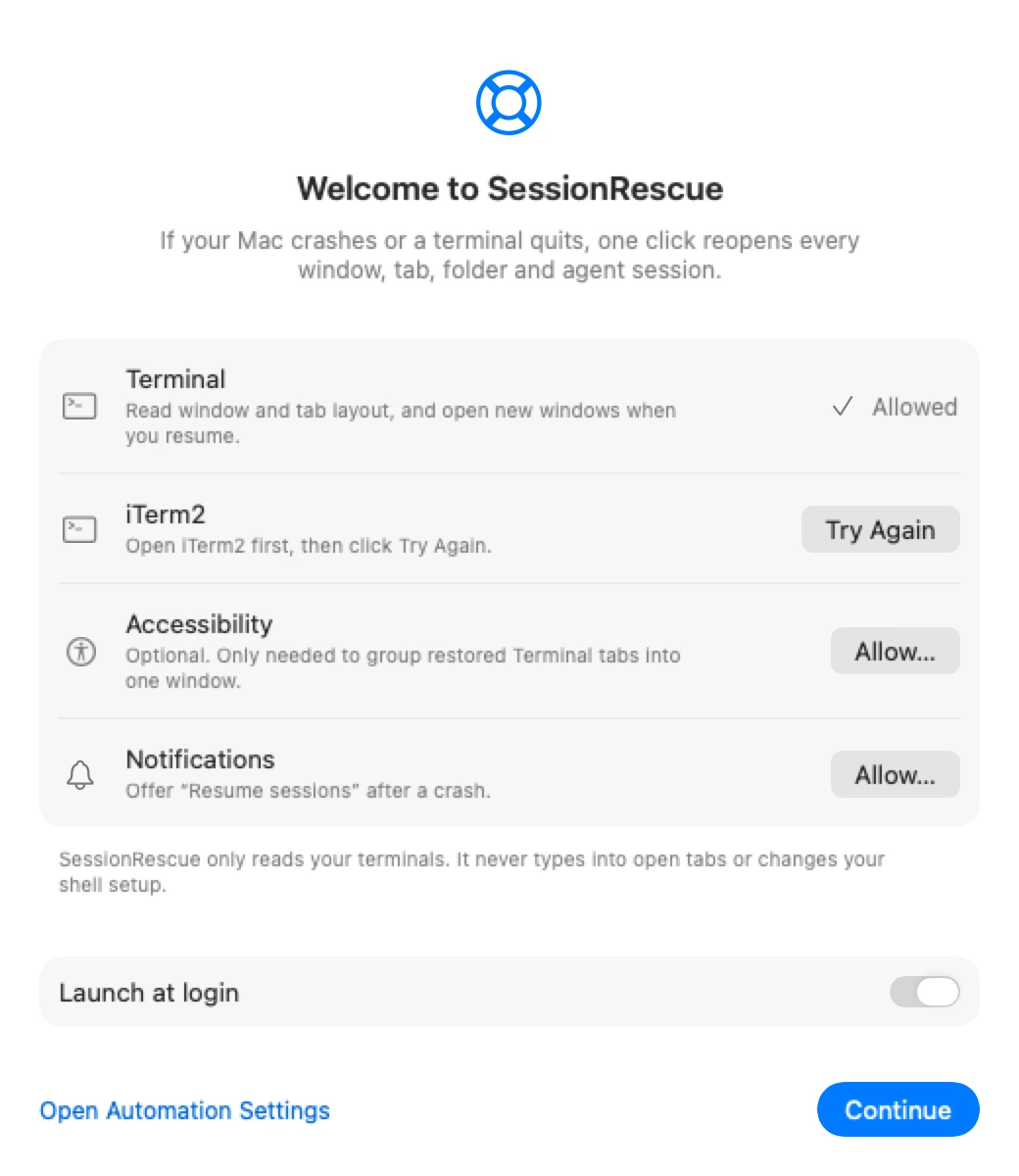
- Follow the short welcome window to allow Terminal, iTerm2 and notifications.
06FAQ
Questions.
macOS says the app can't be opened. How do I install it?
SessionRescue is ad-hoc signed and not yet notarized by Apple, so Gatekeeper stops the first launch. On macOS 13 and 14, right-click (or Control-click) SessionRescue in Applications, choose Open, then click Open in the dialog. You only do this once.
On macOS 15 and later, open the app once and dismiss the warning, then go to System Settings, Privacy & Security, scroll down and click Open Anyway next to SessionRescue.
What are the system requirements?
macOS 13 Ventura or later, on an Apple Silicon or Intel Mac (the app is universal). It works with Terminal.app and iTerm2. The agents you want resumed need to be installed as usual.
How do I get updates?
SessionRescue does not check for updates or update itself. Reopen the download page you reached after paying (it is worth bookmarking): it always serves the latest version. Quit SessionRescue, replace it in Applications and open it again. Snapshots and settings are kept. macOS may ask for the permissions again.
Which permissions does it need, and why?
Automation for Terminal and iTerm2, to read the window layout and open new windows when you resume. Notifications, to offer a resume after a crash. Accessibility is optional and only used if you turn on grouping restored Terminal tabs into one window.
Will it mess with the windows I have open?
No. A restore only opens new windows and tabs. It never types into an existing tab and never closes or kills anything.
Does it send my session data anywhere?
No. SessionRescue makes no network requests. See Privacy above for exactly what it reads and stores.
What is your refund policy?
Full refund within 14 days of purchase, no questions asked. Email arjunkshah21@gmail.com with your receipt. While checkout is in Stripe test mode, no real payments are taken.
Never rebuild your terminal layout by hand again.
$7 once. Fully local. Full refund within 14 days.
Get SessionRescue